Back to list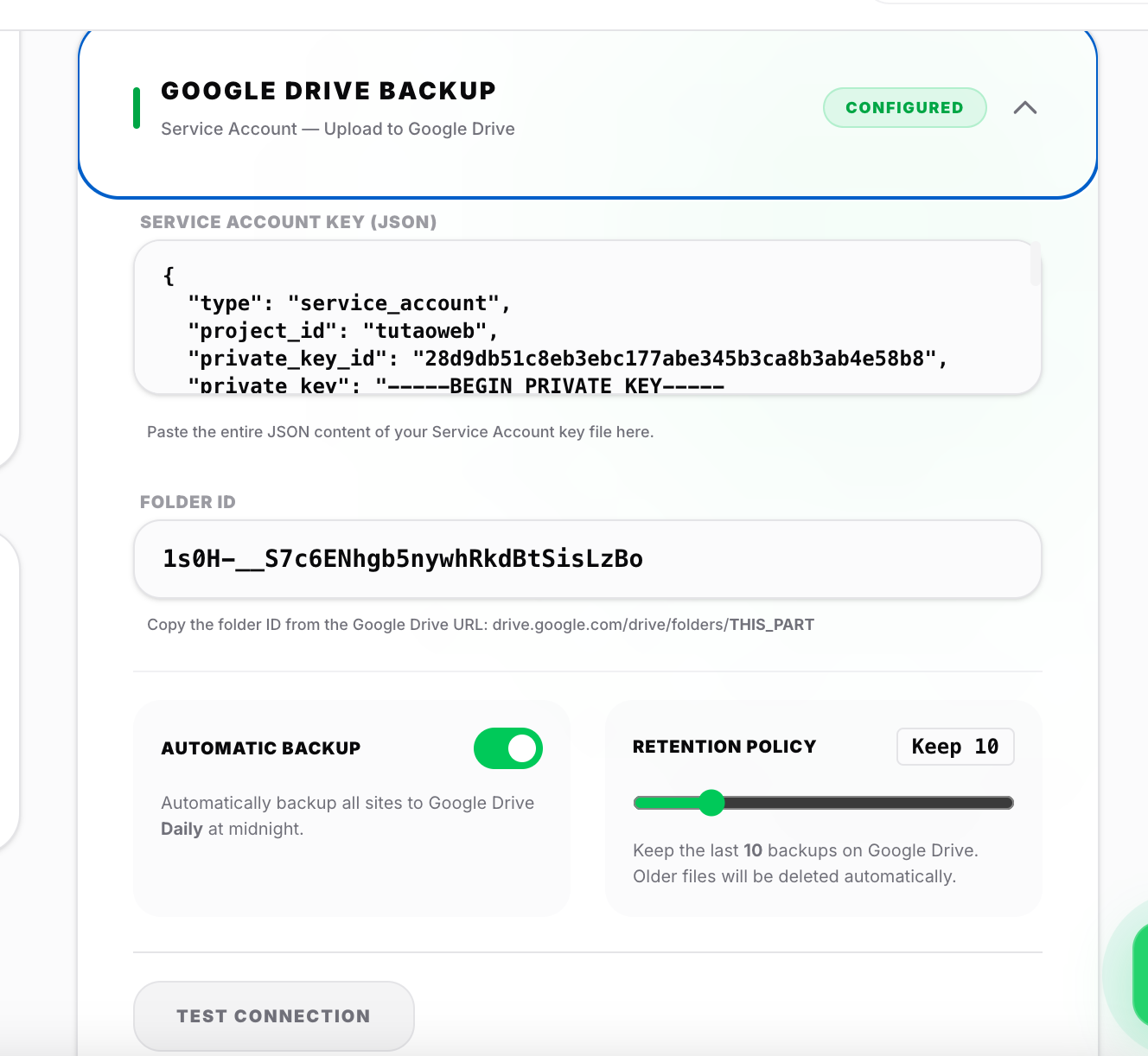
3/7/2026Vuong Van Du Share
How to Set Up Automatic Backups to S3-Compatible Storage and Google Drive
Learn how to set up automatic backups to S3-compatible storage and Google Drive. Step-by-step instructions for secure data protection.
Automate Your Backups: A Step-by-Step Guide to S3-Compatible Storage and Google Drive
Protect your data effortlessly by setting up automatic backups to cloud storage. This guide covers two popular methods: S3-compatible storage (like AWS S3, Cloudflare R2, MinIO, and Wasabi) and Google Drive. Follow these steps to ensure your backups run smoothly and securely.
Setting Up S3-Compatible Storage Backups
- Access the Profile Section: Navigate to your profile and open the S3 Storage Backup section.
- Enter Credentials: Provide the Endpoint URL, Bucket Name, Region, Access Key, and Secret Key.
- Test Connection: Click Test Connection to verify the settings.
- Enable Automatic Backup: Toggle on Automatic Backup to schedule daily backups at 0:00 AM.
- Set Retention Policy: Adjust the number of backup versions to retain.
- Save Settings: Click Save All Settings to finalize.
Configuring Google Drive Backups
Use a Google Service Account to upload backups to Google Drive. Here's how:
- Create a Project: Go to [Google Cloud Console](https://console.cloud.google.com), select New Project, and name it (e.g., websaas-backup).
- Enable Google Drive API: In APIs & Services > Library, search for and enable the Google Drive API.
- Create a Service Account: In Credentials, click + Create Credentials > Service Account. Name it (e.g., backup-uploader) and assign the Editor role.
- Generate JSON Key: In the Service Account's Keys tab, create a new key with JSON format and download it.
- Share the Folder: Create a folder in Google Drive (e.g., Website Backups), share it with the Service Account's email (found in the JSON file), and grant Editor permissions.
- Obtain Folder ID: Extract the Folder ID from the URL:
https://drive.google.com/drive/folders/1a2B3c4D5e6F7g8H9i0JkLmNoPqRsTuV. - Configure in WebSaaS: In your profile, open Google Drive Backup, paste the JSON key and Folder ID, test the connection, enable automatic backups, set retention, and save.
Note: You can configure both S3 and Google Drive simultaneously for redundant backups.